



.png)
WhatsApp, as one of the world's most widely used messaging apps, offers a unique opportunity for businesses to connect directly with their audience. By integrating WhatsApp with Salesforce through messaging channels, organizations can elevate their sales game to new heights. This blog explores the benefits, step-by-step integration process, and the impactful synergy of WhatsApp and Salesforce messaging channels in fostering meaningful customer interactions.
Why Integrate WhatsApp with Salesforce?
- Real-Time Interaction: Respond to inquiries instantly, fostering trust and resolving issues swiftly, all within a familiar platform your customers love.
- Personalized & Engaging Support: Engage in rich conversations with audio, video, and media files, building personal connections and delivering a more satisfying experience.
- Elevated Customer Satisfaction: Offer omnichannel support at scale, leading to happier customers and improved loyalty.
.png)
Prerequisite for Salesforce and WhatsApp Integration
- Required Salesforce Licenses: For Service Cloud integration, you need a "Digital Engagement" and "Chat User" license.
- Approved WhatsApp Business Account: Your business needs a verified WhatsApp Business Account linked to a Facebook Business Manager Account.
- Phone Number: You need a dedicated phone number associated with your WhatsApp Business Account to be used for the integration.
Steps to Integrate WhatsApp with Salesforce
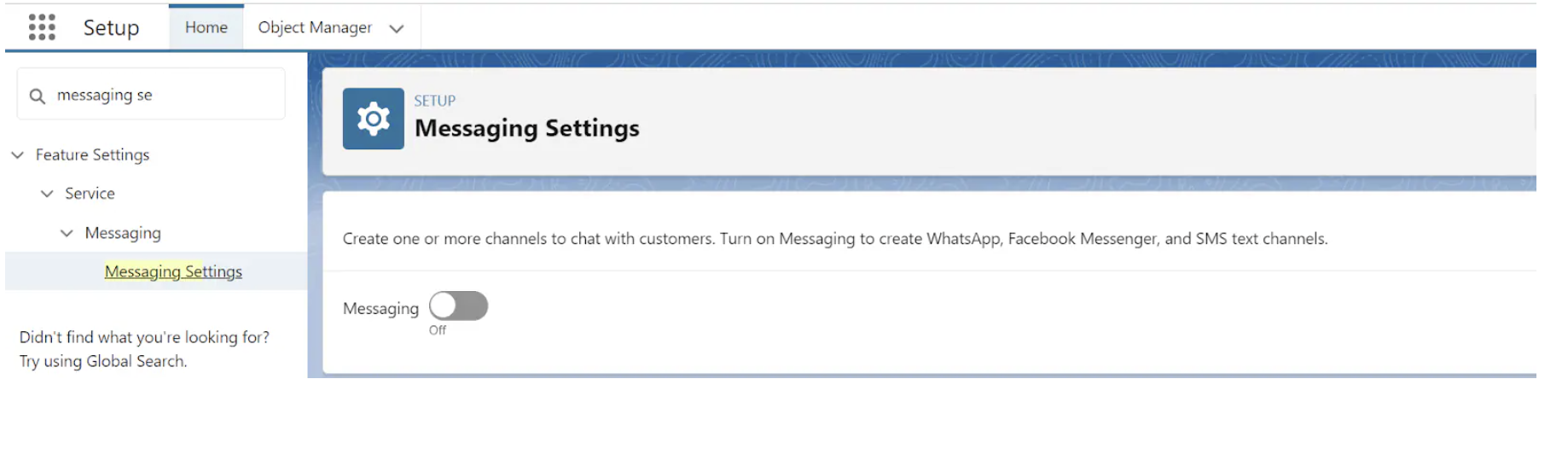
1.Go to setup, search for Messaging Settings in the Quick Find box and select messaging settings.- "Turn on “Messaging”".
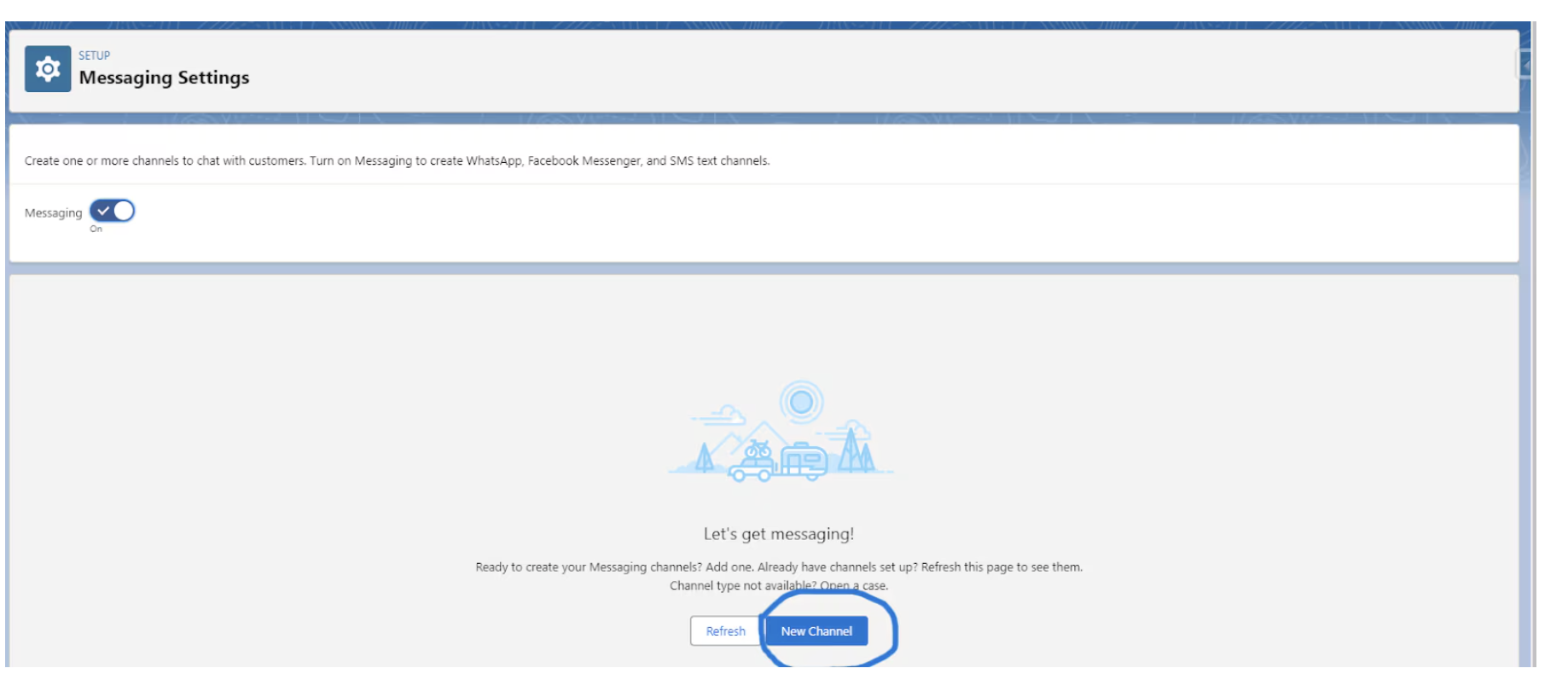
2. Now click on “New Channel” to create a channel.
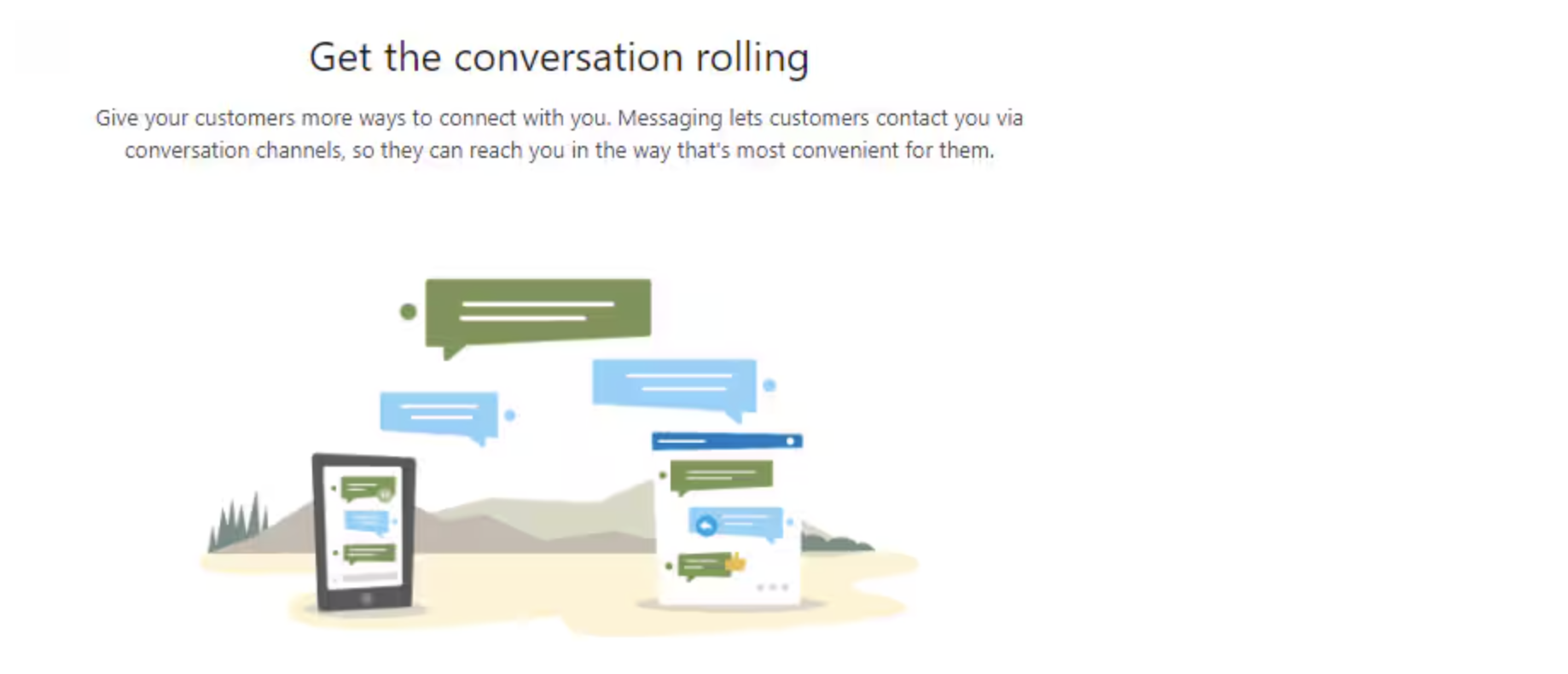
- Now click on start
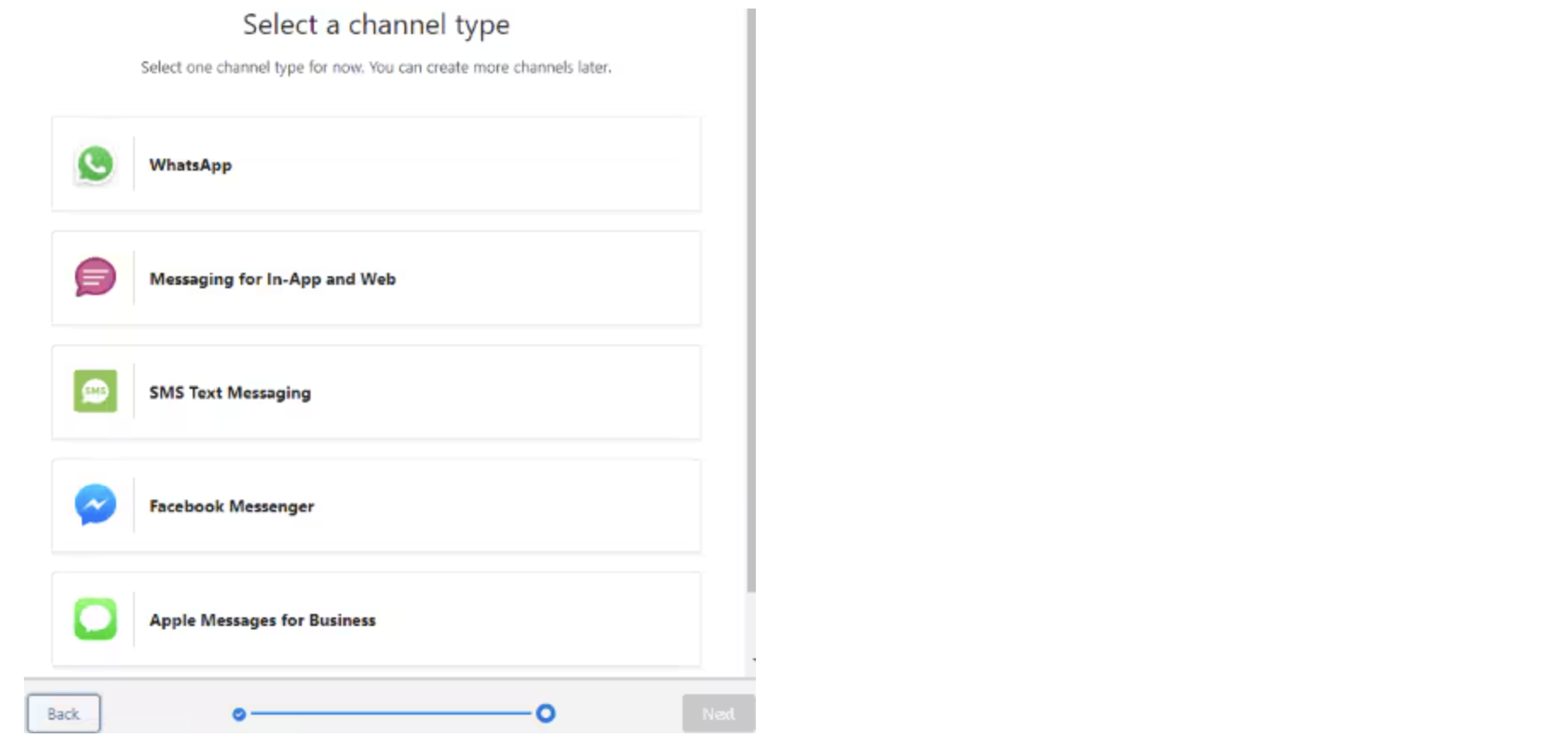
3. Select WhatsApp as the messaging channel.
4. Choose messaging channel type Enhanced >> click Next >> read terms and conditions and click Next.
- To know more about Messaging Channel Type and its capabilities check out the link below.
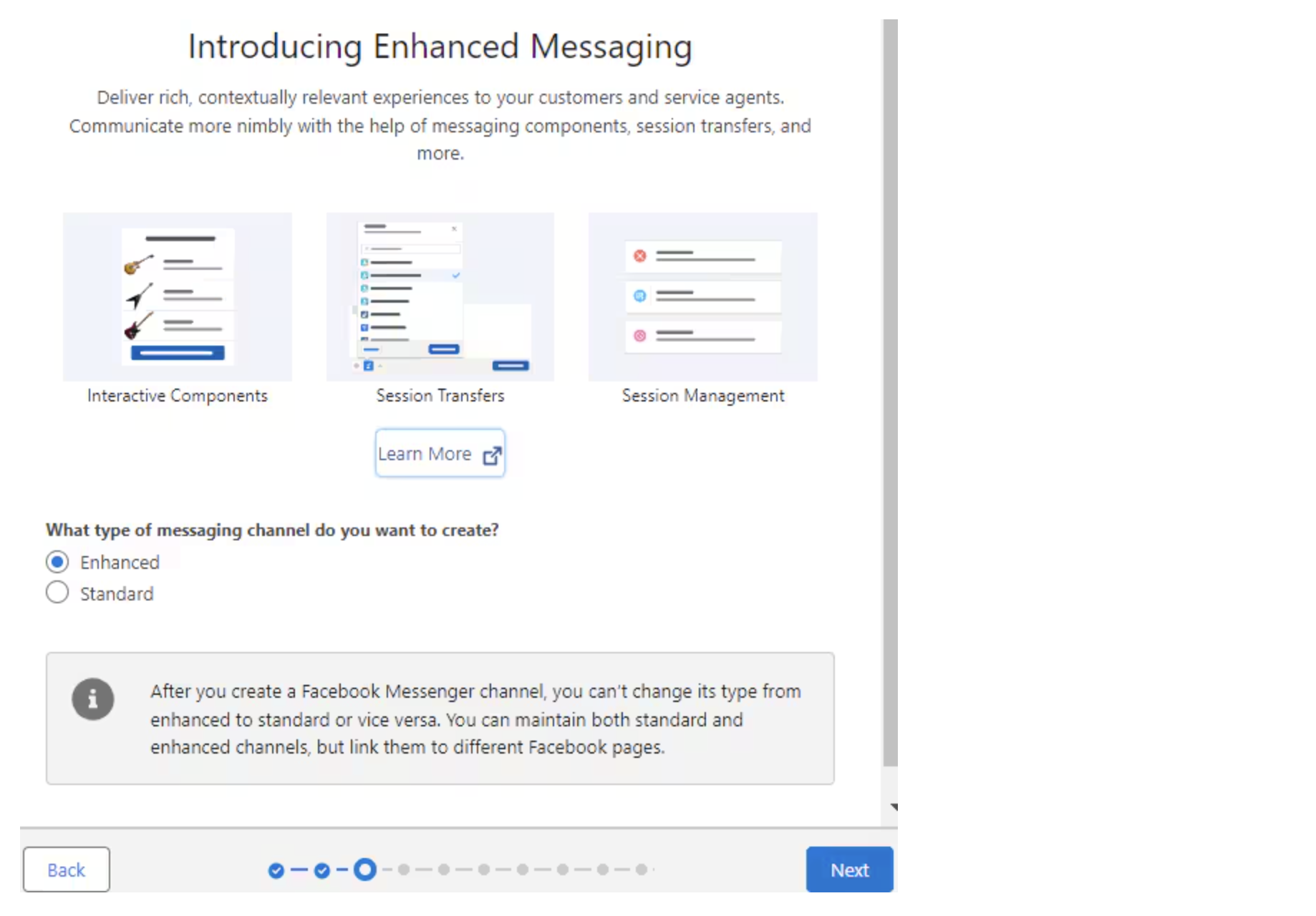
5. If we have selected the Standard messaging type then the Standard Conversation component is already available on the layout to receive messages.
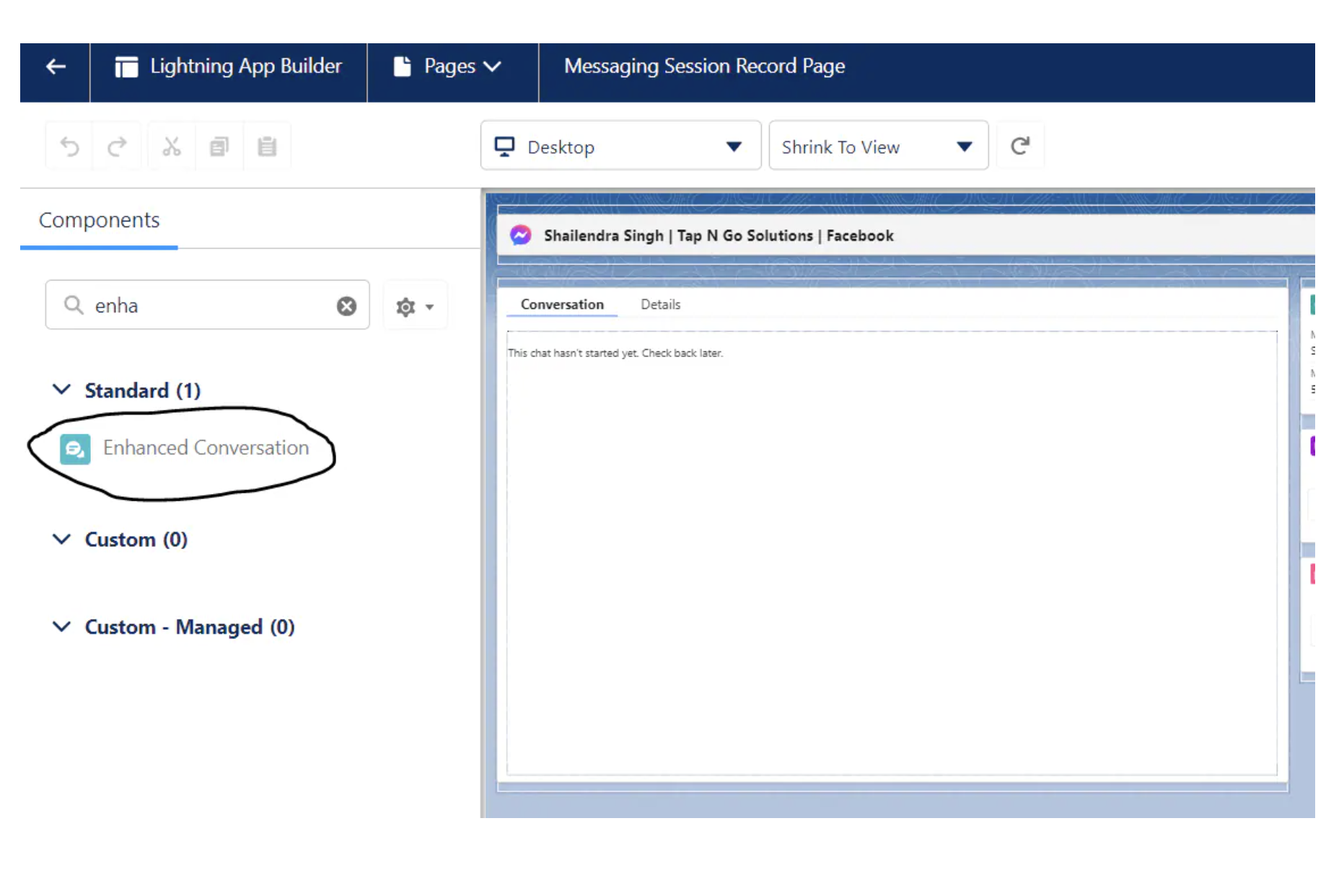
As we have selected Enhance type messaging channel earlier so we will have to customize the layout for the Messaging Session to receive the messages later.
- Click the gear Setup to open Setup, and click Object Manager.
- Click Messaging Session | Lightning Record Pages.
- Click the page name and then click Edit.
- Drag and drop the Enhanced Conversation component on the right panel.
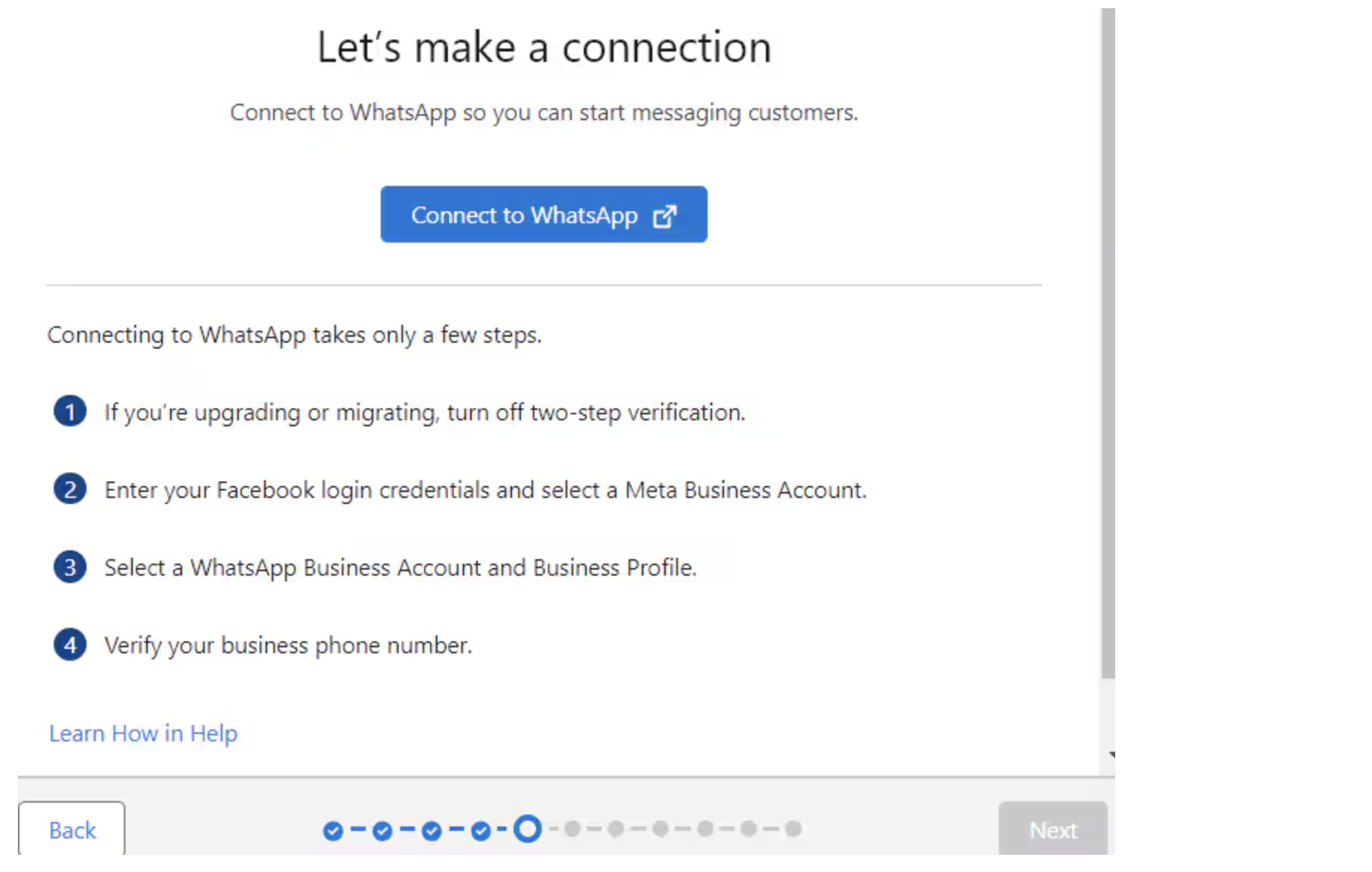
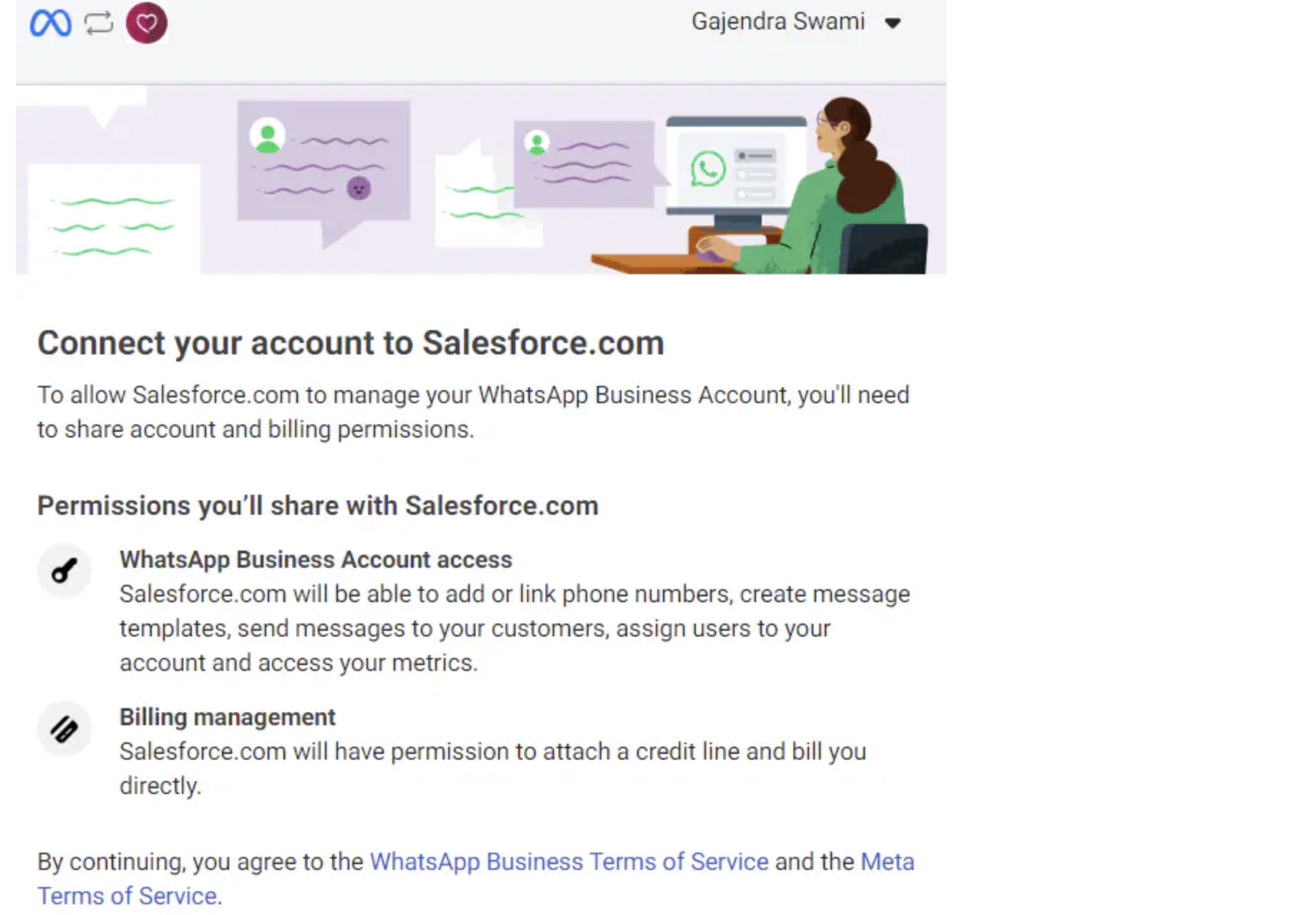
6. Click on Connect to WhatsApp.
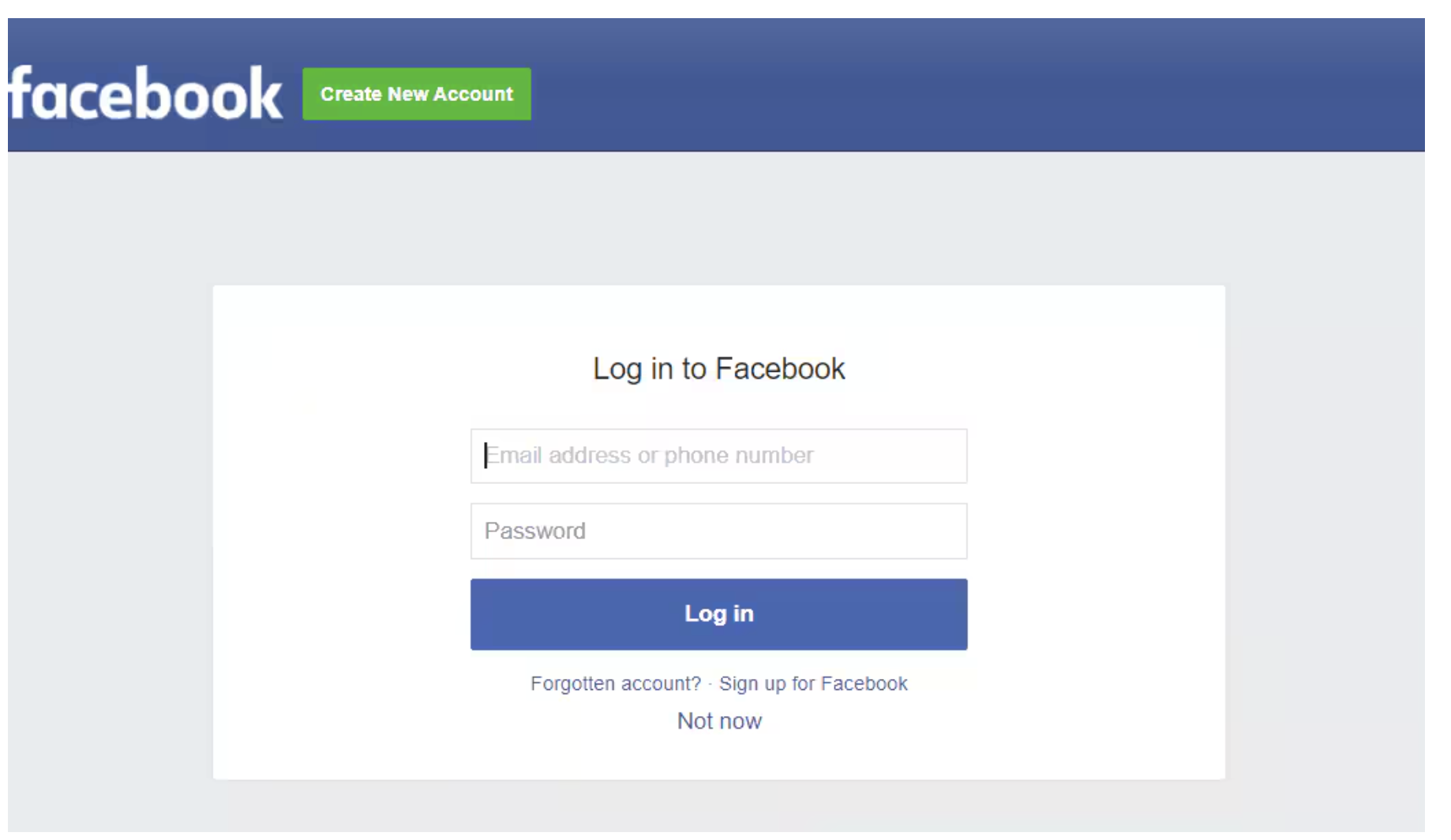
7. A Popup window will be opened and enter your Facebook Login credentials.
8. Read the Terms of Service and click on Get Started.
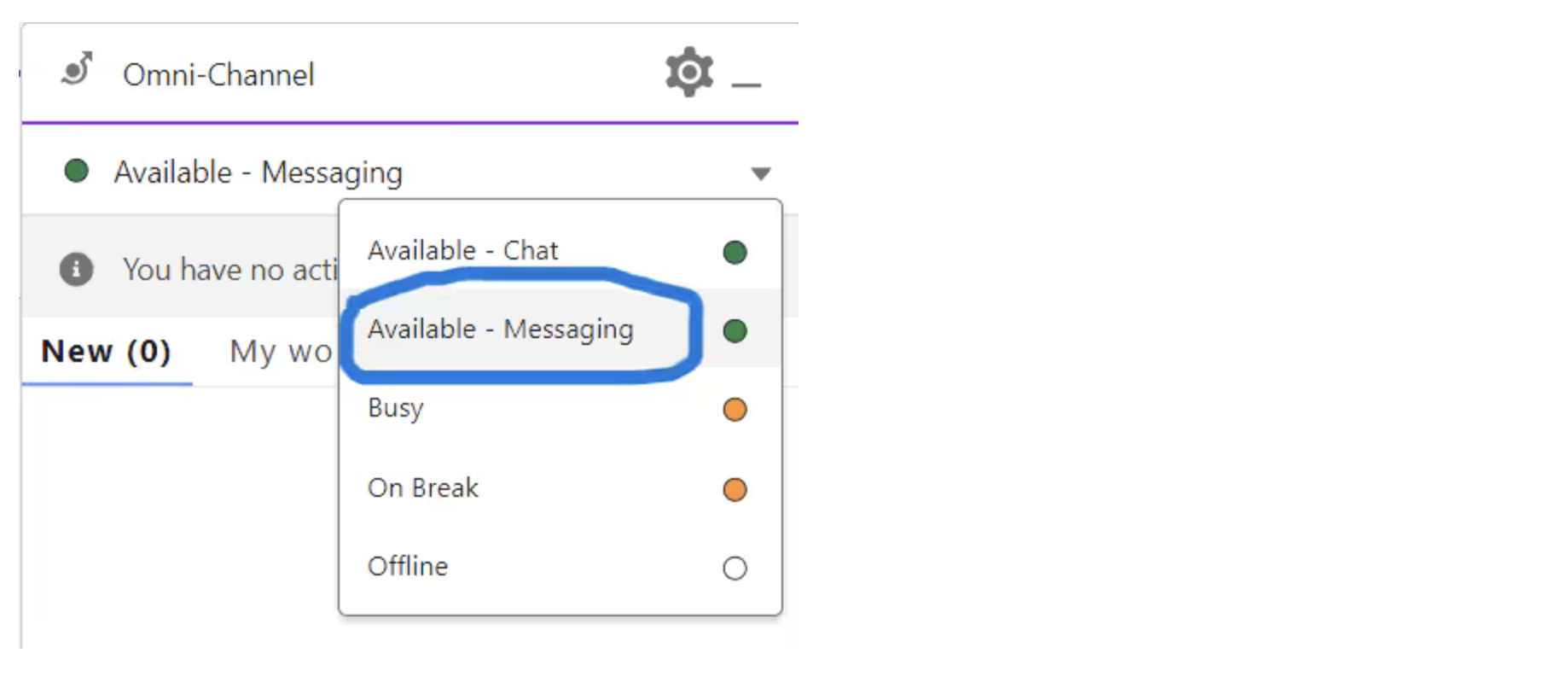
9. Change your Omni-Channel presence status to “Available-Messaging” so that you’re online and available to receive messages.
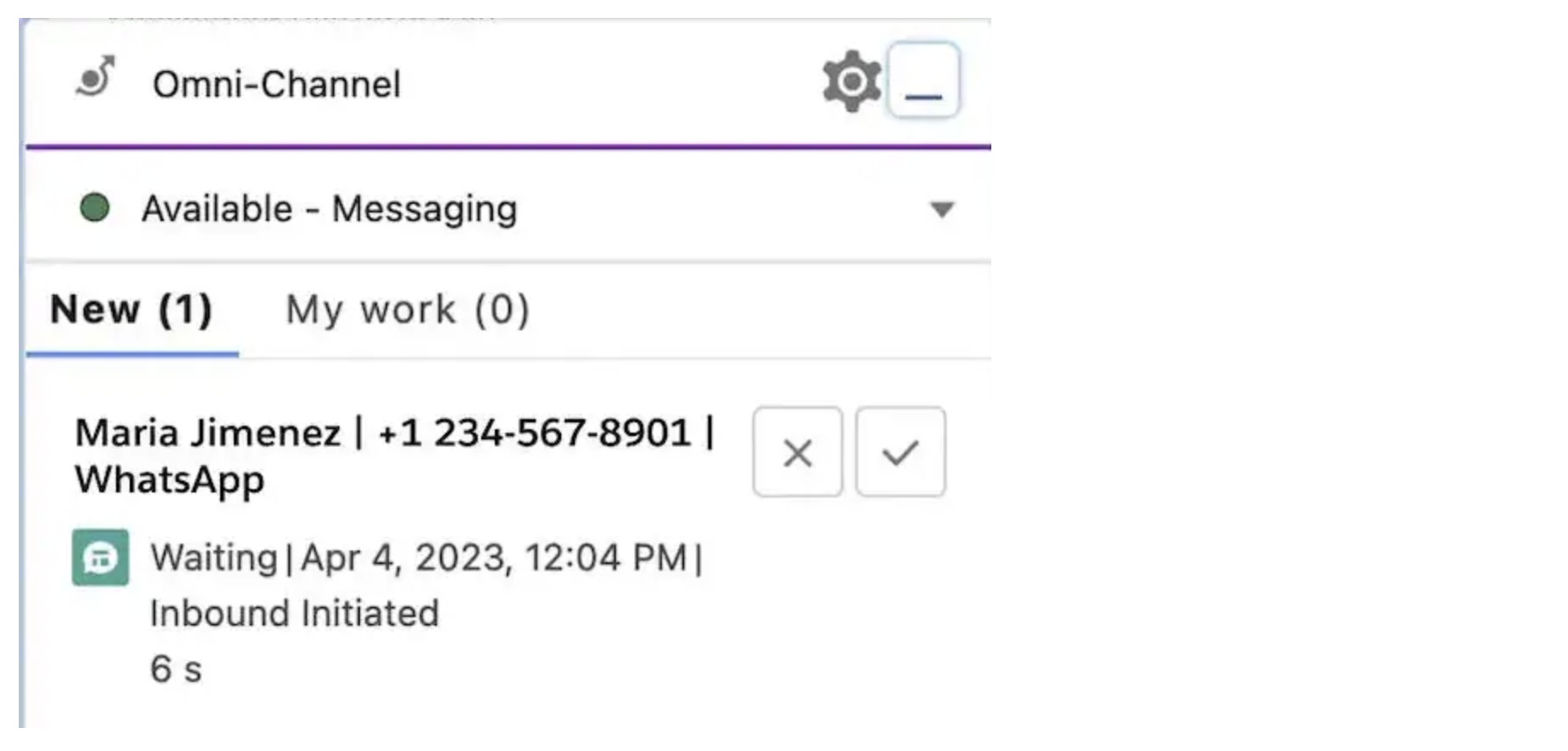
10. Now message from any WhatsApp number to the WhatsApp number that is connected as a messaging channel that we selected and the message will be received in the Omni-Channel utility.
Summary
After following this blog you should be able to integrate WhatsApp with salesforce without writing a single line of code using Salesforce’s standard feature Messaging Channel.
Additional Resource





.png)

