



You've assigned the Permission Set. You've checked the Profile. The app is still not visible in the App Launcher. Does this sound familiar? I've experienced it too. Here’s what fixed it.
It Started with a Monday Morning Slack Message
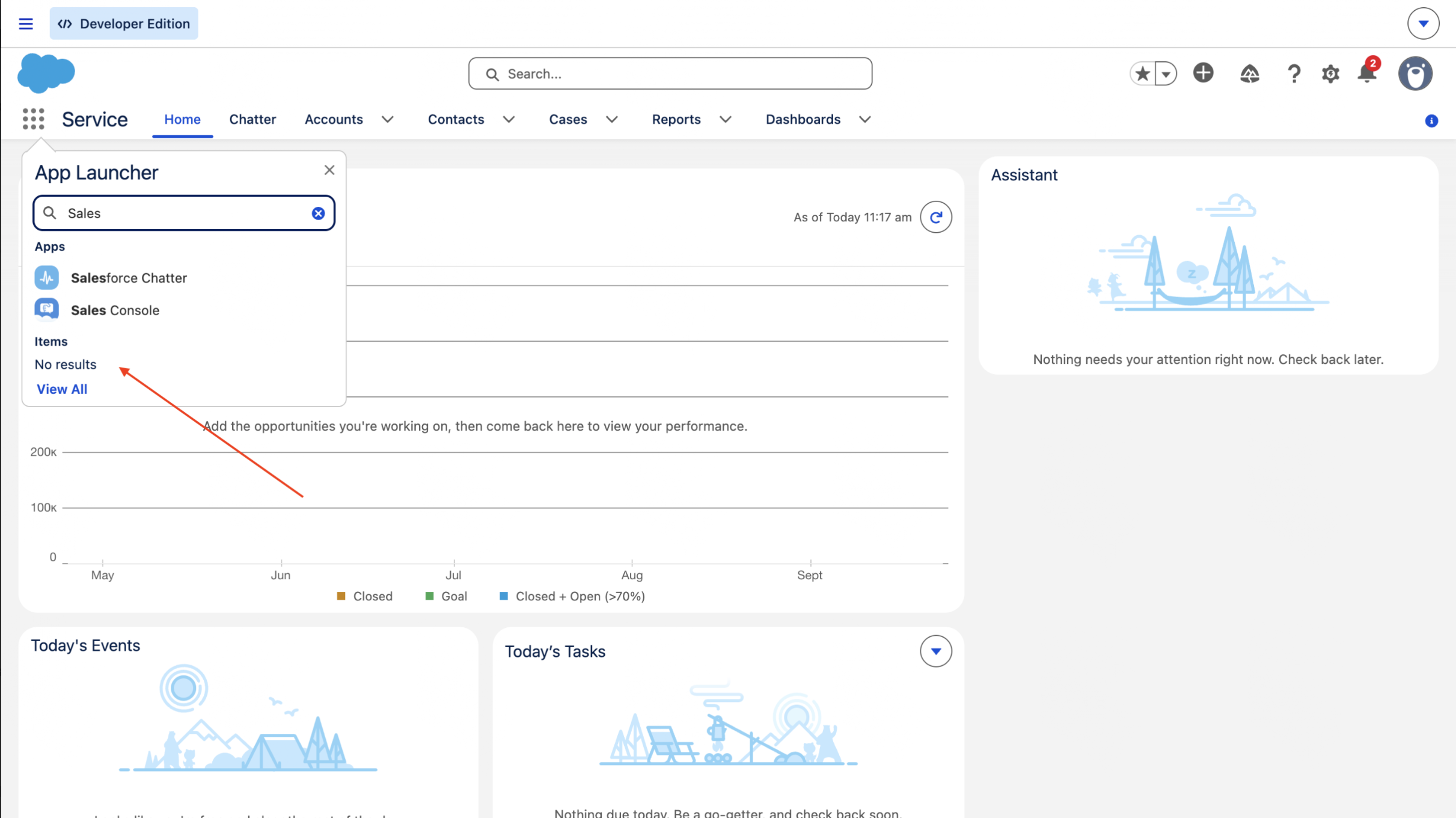
My name is Shoaib, and I'm a Salesforce Developer at Astonous. I'm currently focused on Financial Services Cloud (FSC). One regular Monday morning, my lead messaged me: "Shoaib, Jeff doesn't have access to the Sales app. Assign him a Permission Set." Simple enough, right? I went in, assigned the Permission Set, and messaged back: done. But then Jeff replied that he still couldn’t see it in his App Launcher. I logged in as him to check. It was blank. No Sales app. I thought it might be a Profile issue. I went to Jeff's Profile and granted access to the app directly. Still nothing. Then I enabled visibility on the Profile too. Still nothing. At this point, I started to doubt myself. As a System Admin, I checked my own App Launcher, and I couldn’t see the Sales app either. That’s when I realized this was something more complicated. I did what any good developer does when faced with a challenge: I opened Salesforce Help, sifted through articles, and finally found the one setting hiding in plain sight.
Why This Happens: The 3-Layer App Visibility Model
Salesforce doesn't exactly put an app on a billboard. App visibility in Lightning Experience depends on three layers. If any one layer is incorrect, the app won't be visible.
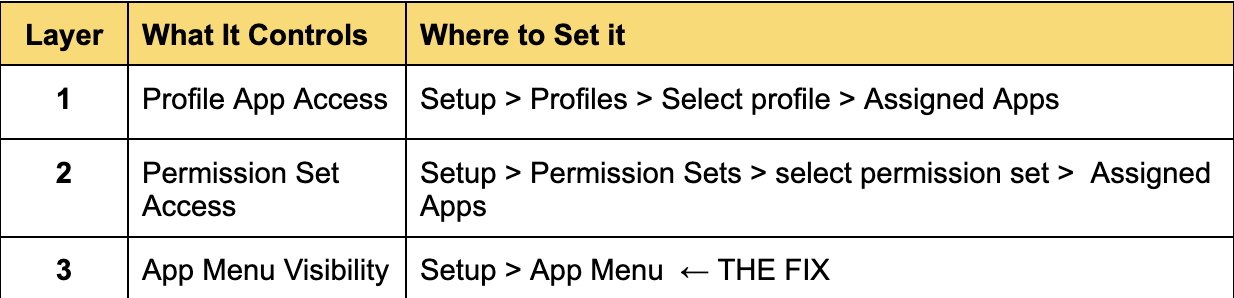
Layer 3, the App Menu, is often the culprit. It is a global setting that determines whether an app can show up in the App Launcher. If it is turned off, no adjustments in Profile or Permission Set will make the app visible.
The Fix: Step-by-Step
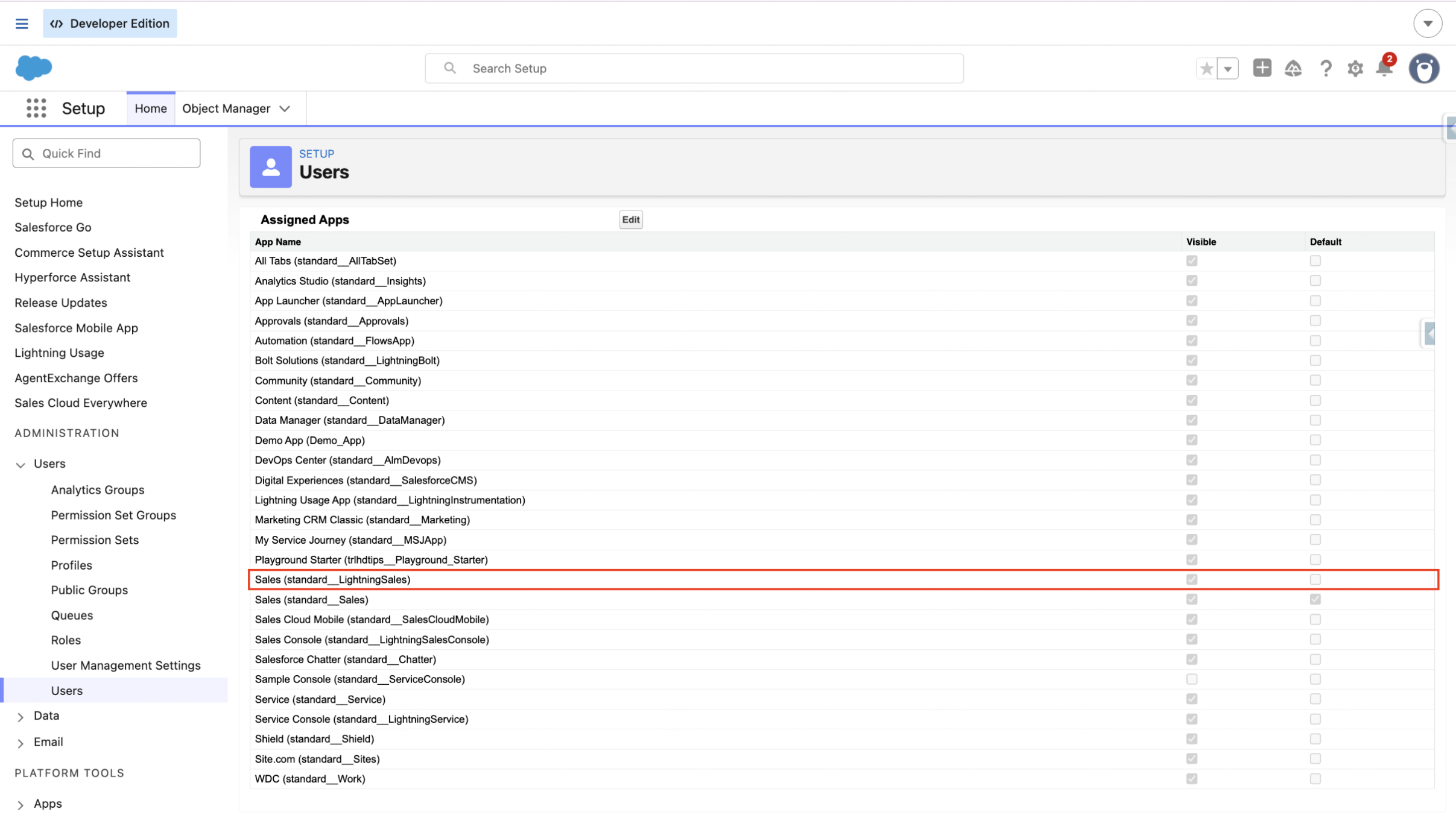
1. Verify Profile App Access
- Go to Setup → Profiles → [User's Profile] → Assigned Apps.
- Ensure the app is both "Assigned" and "Visible."
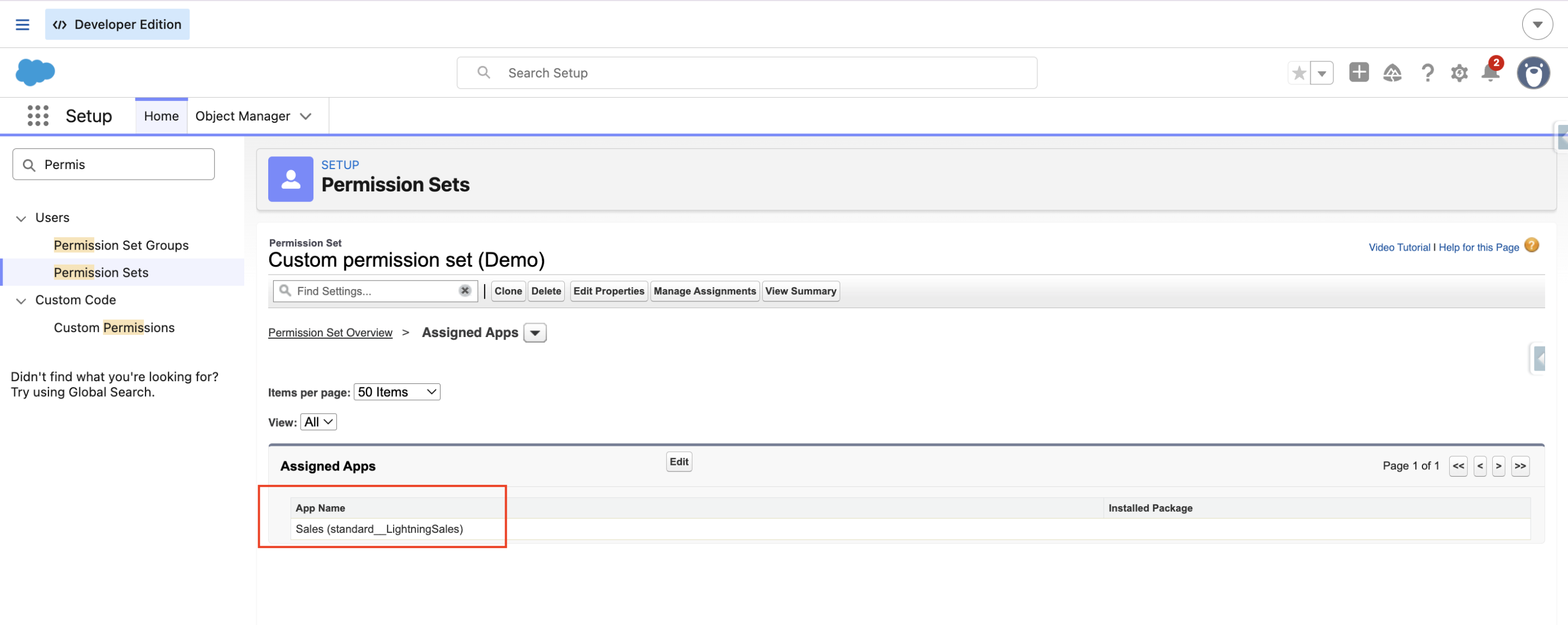
2. Check the Permission Set (if applicable)
- Navigate to Setup → Permission Sets → [Your Set] → Assigned Apps.
- Confirm the app is listed and enabled.
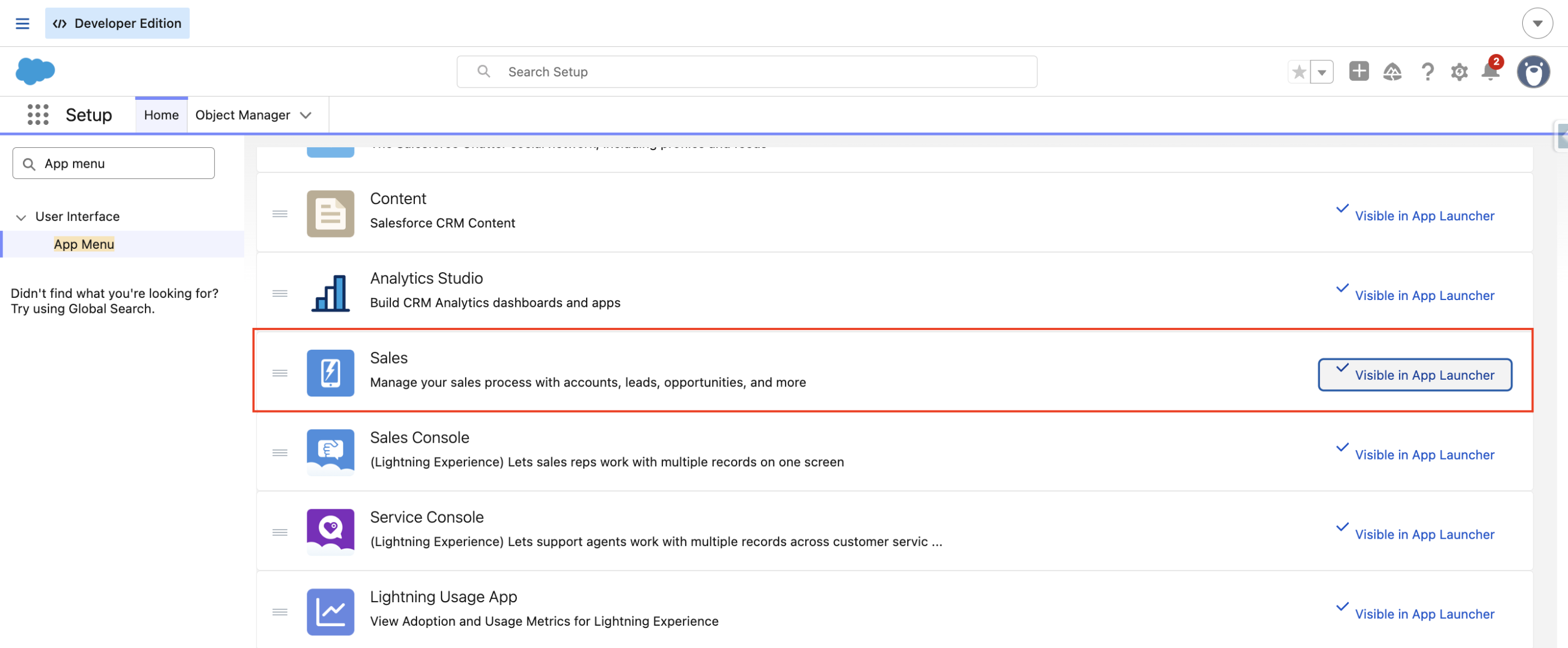
3. Go to the App Menu
Go to Setup → App Menu and confirm that your app is set to "Visible in App Launcher." If it is "Hidden in App Launcher," users will not see it in the App Launcher regardless of their Profile or Permission Set permissions.
4. Verify as the affected user
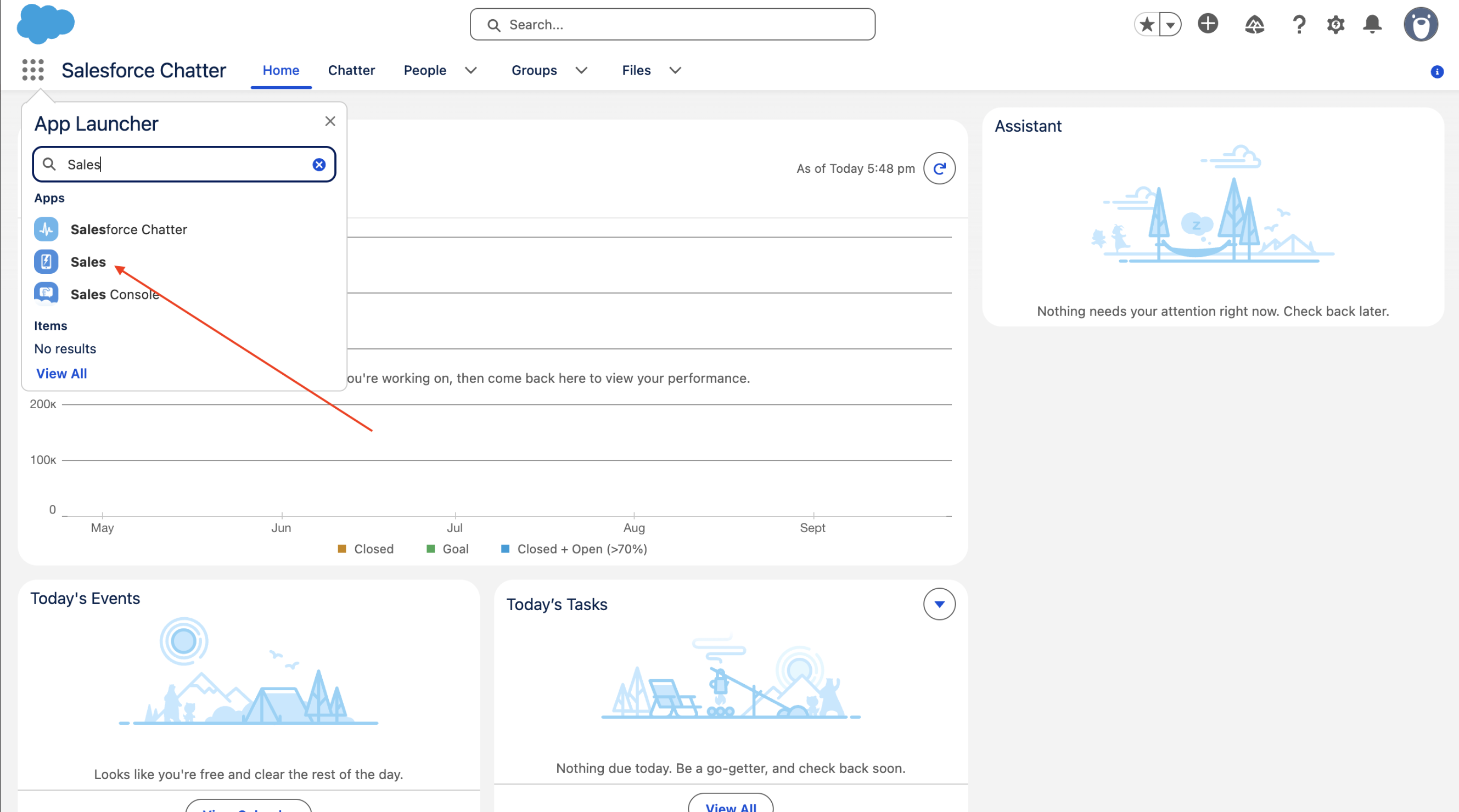
After making the changes, use Setup → Users → Login or Salesforce Inspector Reloaded to log in as the affected user and ensure the app appears as expected. Always validate the result instead of assuming the fix worked.
What Actually Controls What
- Profile App Access: Controls which Lightning Apps a user can see in the App Launcher.
- Permission Set App Access: Grants access to standard or custom apps without changing a user's core profile.
- App Menu: Allows administrators to control the order of apps in the App Launcher and manage their visibility for all users.
Why Even System Admins Can Miss This
This is what confused me the most. Even as a System Admin, I checked my own App Launcher and couldn't find the app. This showed me the problem wasn't at the user level. System Admins can bypass Profile restrictions, but the App Menu toggle applies to the entire organization. It doesn't consider your admin role. If the app is hidden in the App Menu, it is hidden for all users. This feature can be useful for organizations looking to phase out an app without deleting it. Simply turn it off in the App Menu, and it disappears quietly from all App Launchers. However, it can be a significant oversight if you are unaware of its existence.

.png)

.png)